Webcams and mounting clearance
A webcam's mounting clip can determine whether it belongs on your monitor at all. Check the screen edge, cable path and camera angle before comparing resolution figures that may not change your ordinary calls.
Look at the monitor from the side
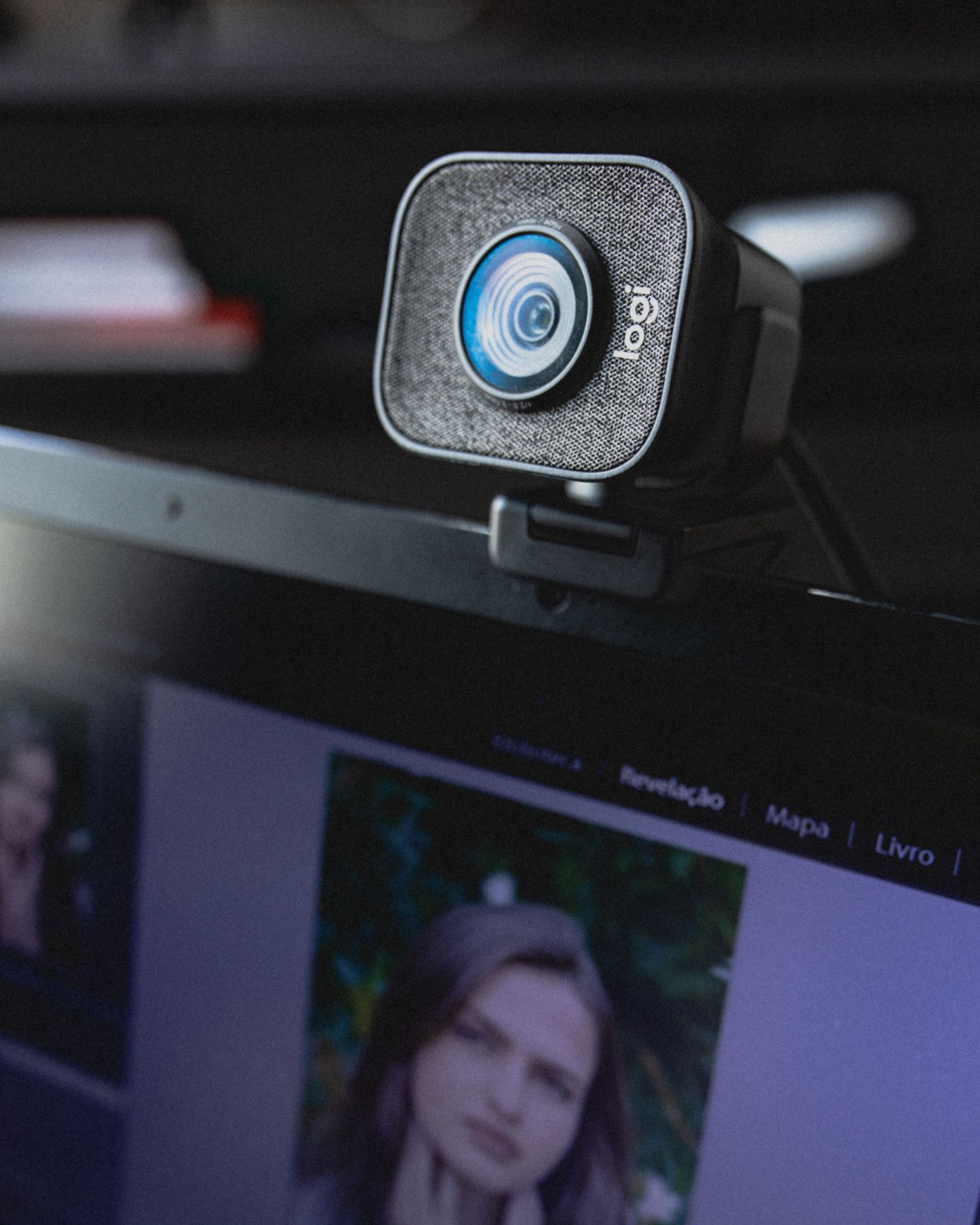
Measure the top edge and inspect its shape. A very thin bezel, curved back or ventilation opening can make a generic-looking clip awkward. Compare the webcam's mounting instructions with the actual screen rather than assuming every clip suits every display. The front part must not cover active pixels or press against a fragile area.
Check what happens when the monitor tilts or rises. The camera should remain secure without pulling its cable tight. If you use a laptop, consider closing and carrying it: remove the external webcam as instructed rather than leaving a bulky clip between lid and base. A mounting arrangement that works once should also suit the daily routine.
Consider a separate stand when needed
A small tripod or desk mount can avoid an unsuitable screen edge, but it takes surface space and needs the correct attachment. Logitech's C920e documentation, for example, lists both a mounting clip and a tripod thread. That illustrates why the exact product specification matters; a thread or compatible stand should not be assumed for every webcam.
Measure the complete stand with its legs spread and the camera attached. Place a paper outline beside the monitor and check whether it interferes with the mouse, notebook or lamp. A tall, narrow support may look discreet while being easy to knock. Follow the stand's load and attachment instructions rather than improvising a fitting.
Frame the real seated position
Open the camera preview in your ordinary calling application and sit as you normally work. Adjust the angle without moving your chair into an unnatural position just to fit the frame. Check how much of the room appears and whether a supported field-of-view adjustment helps. Digital cropping can change the framing but does not remove the need for a sensible physical location.
Try the lighting at the time calls usually happen. A bright window behind you can be a different problem from insufficient camera resolution. Move the light or seating arrangement before assuming a more expensive webcam will correct every scene. Verify the application's selected camera so the test is not accidentally using the laptop's built-in device.
Keep controls and connections accessible
Check cable length, connector type and any required software for special settings. Leave a privacy cover easy to open and close without shifting the mount. A physical lens cover affects the picture, not necessarily the microphone, so inspect audio controls separately. Keep the final setup simple enough that the camera returns to the same useful position after cleaning or moving the display.