External SSDs for local file copies
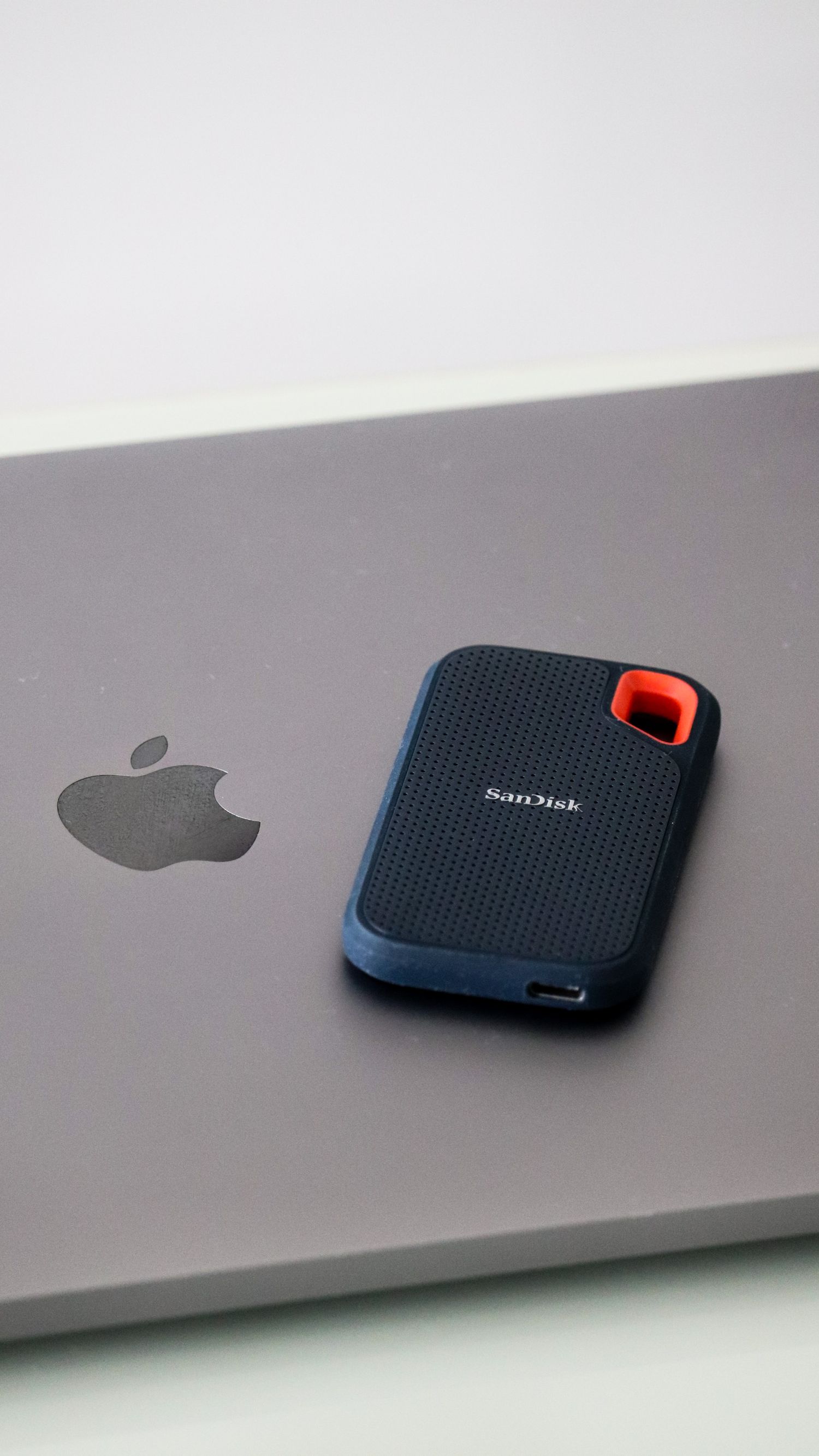
An external SSD can hold a separate local copy of working files, but the drive itself does not decide what gets copied or when. Start with a repeatable copying routine, then choose the hardware that supports it.
Specify the files and the computer
Identify the folders you want to copy and check their current combined size. Add room for the material you expect to create rather than choosing capacity only from today's total. If several people use the drive, agree on folder names so that one person's copy is not mistaken for another person's current work.
Check the computer's ports and the drive's supplied cable. A fast headline transfer rating depends on a compatible connection and does not describe every file-copy task. Large video files and folders containing many small documents can behave differently. For an occasional local copy, a dependable connection and a clear routine may matter more than the highest advertised number.
Separate a copy from your only remaining file
Copying a folder leaves the original in place; moving it can leave the external drive as the only location. Confirm which action your file manager is performing before removing anything from the computer. If you then delete the original to free space, you have changed the role of the drive from an additional copy to primary storage.
Manufacturer instructions distinguish manual copying from configured backup software. Choose deliberately between these approaches. A manual routine needs a reminder and a way to identify the latest completed copy. An automated tool needs its included folders, schedule and behavior checked rather than being assumed to cover everything on the computer.
Synchronization deserves its own check because changes or deletions may be propagated according to the tool's settings. Read what happens to an accidentally deleted or overwritten file. If recovering an earlier version matters, confirm that the chosen method actually retains versions and how you would restore one.
Check compatibility before formatting
Find out which operating systems must read and write the drive. Follow their supported formatting guidance, and preserve any existing files before changing the file system because formatting can erase data. A new drive being readable on one computer does not establish that your second computer will support the same operations.
Keep the drive somewhere stable while connected, with enough cable slack that moving the laptop will not pull it off the desk. Use the operating system's appropriate eject or removal procedure. A compact device is easy to carry, so decide on a storage location that makes accidental loss less likely.
Verify a small restore
After the first copy, open several representative files from the external drive and check that they are the expected versions. Then practice restoring a small test folder to a different location. This is more informative than only seeing a completed progress bar, and it avoids overwriting your working originals during the test.
Keep sensitive material protected using a method you understand, including how recovery credentials are stored. An external SSD beside the same computer does not address every loss scenario, so consider what would happen if both were unavailable. The useful purchase includes a recovery routine, not just a convenient place to accumulate another set of folders.